
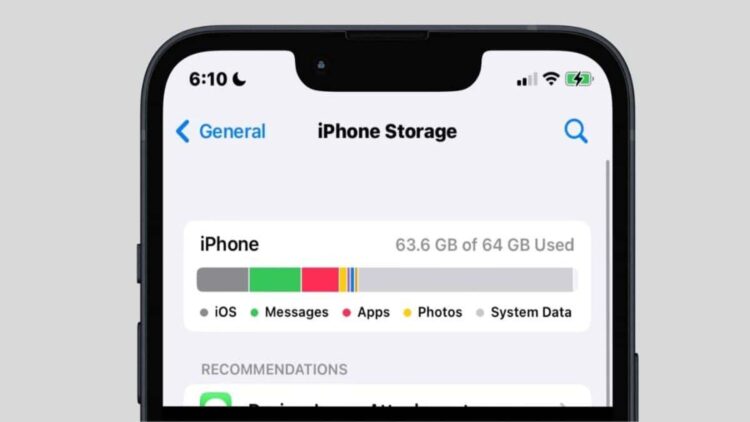
One of those modern “problems” that aren’t really problems at all is when your smartphone runs out of storage. A full phone’s storage is a common problem, as it can practically disable your device. Fortunately, there are a few tricks you can use to free up that space. One of these is clearing app caches, something that isn’t possible natively on iOS without deleting the apps themselves. Therefore, by deleting the apps that take up the most space, as determined by the iPhone’s Storage settings, you can recover storage space.
The smartphone may start to slow down, become unresponsive to user commands…
The fact is that insufficient storage not only limits the downloading of new apps and the capture of photos or videos, but it can also affect the overall performance of the device. The smartphone may start to slow down, become unresponsive to user commands, or fail to open the camera. In fact, if there’s one element in iOS that’s often confusing due to its lack of clarity, it’s the infamous “Other” when checking the iPhone’s available storage. This is displayed in gray within Settings > General > iPhone Storage and can sometimes occupy several gigabytes of space, even being the largest storage category. This is surely a very familiar concept for iPhone users.
The fact is that this space, known as ‘Other’, is mainly composed of temporary files, app cache, documents, and other residual elements generated by the system and the various installed apps. Although there are options like expanding cloud storage, many users prefer to manage their iPhone’s internal memory efficiently without resorting to deleting valuable content. For example, you can clear Safari browsing data, something not many people know about. This is done by going to Safari from Settings > Safari and tapping on the “Clear History and Website Data” option.
Apple’s official website recommends checking how much iCloud storage you’re using
Apple recommends freeing up storage as follows: Just by setting up iCloud, “you’ll automatically get 5GB of free storage. You can use that space for iCloud backups, keeping photos and videos stored in iCloud Photos, and keeping files up to date in iCloud Drive, among other things.” Apple’s official website recommends “checking how much iCloud storage you’re using in Settings on your device or at iCloud.com. And if you’re running out of iCloud storage, you can manage your storage to free up space or upgrade to iCloud+.”
Something many users don’t know is that you can free up space by deleting and reinstalling apps. The safe way to clear the cache of certain apps is to delete and reinstall them from this panel—not from the home screen—by selecting the “Delete App” option. Once reinstalled, and if the data is synced with iCloud, the user will keep their important information and free up the space used by the residual cache.
On the other hand, the app that most often fills up smartphone storage is WhatsApp, precisely because it’s the most used, the one where messages and multimedia content are exchanged the most. Freeing up WhatsApp space using the app’s own storage management tool allows you to delete sent and received files individually or all at once. Being able to see which ones are taking up the most space is key. Sometimes we don’t realize that all the photos and videos we send and forward through the app take up storage space that we’ll need later.
Finally, another recommendation for WhatsApp is to disable the “Save to Photos” option within the Settings > Chats menu, so that only the necessary files are manually saved to your device’s gallery. We often download a lot of files from the internet and social media without realizing it. The fact is, reviewing and manually deleting these files is essential to maintain your smartphone’s storage and overall health.